How to share listing photos and video with an agent using one property link
Bring the property's selected media together on a viewing page. Check the page before publishing, confirm the anonymous recipient view, and keep original-file delivery as a separate handoff.
By Infinite Creator
Published
Before you start
A property page gives an agent one place to view the listing's selected photos, video and property information. Prepare the page around the media you intend to show, then test the same link the recipient will open.
This guide covers a public viewing link. If the agent needs original photo files, a separate existing floor-plan file or a specific video export, arrange that file handoff separately.
Choose the property and review its media
Open Listings in your Infinite Creator workspace and select the property you are preparing to share. Check that the photos, selected video and property information belong to this listing.
Use media you have permission to publish. Review the image order and remove material that should not appear in the public view.
If the property has an existing supported tour available, include it only when it is useful and permitted, then check its public viewer. Keep the page focused on the media that is actually ready.
Worked example: a verified viewing link
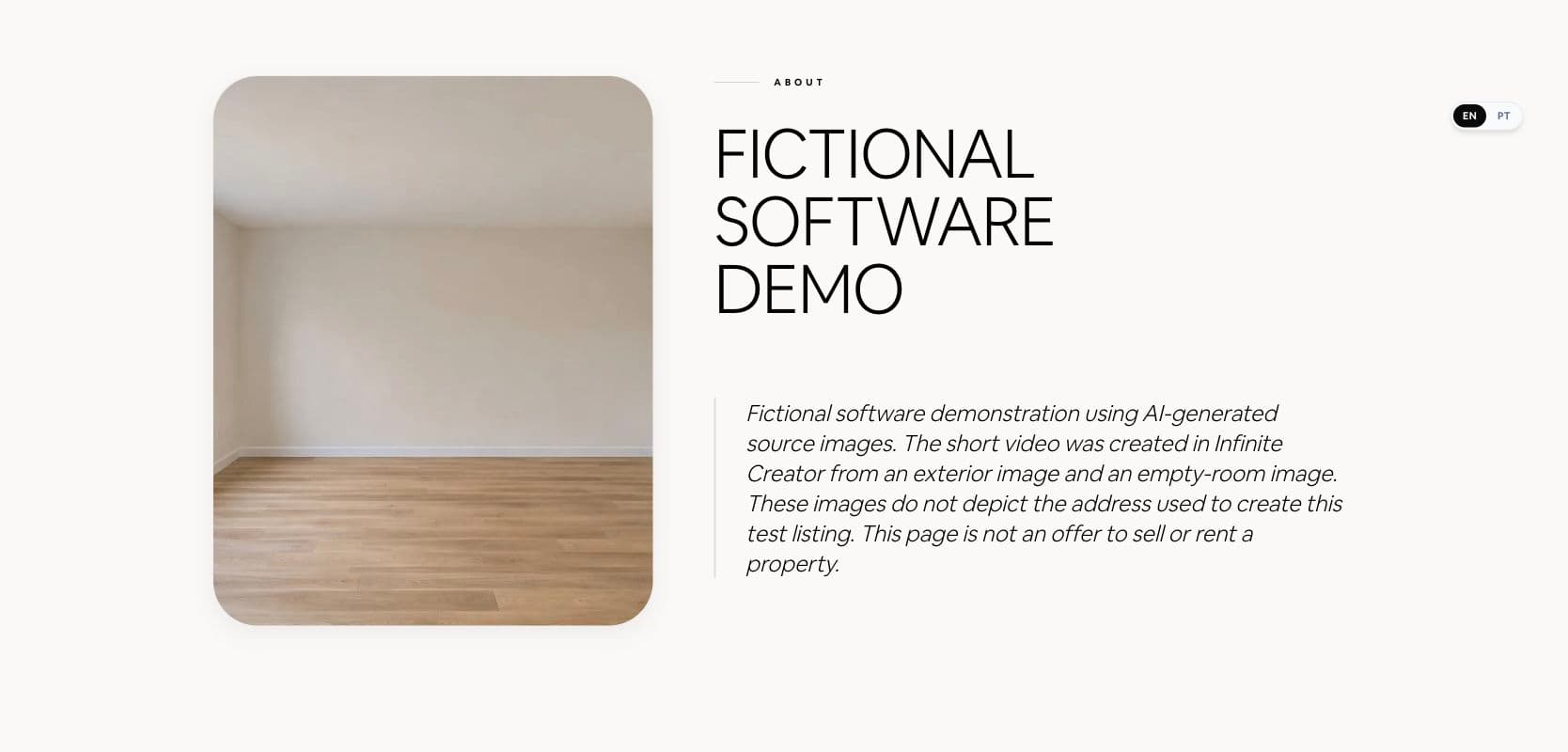
We prepared one demonstration page with two synthetic photos and the completed 4.6-second listing video. The page clearly identifies the content as fictional. The test listing's setup address does not identify the images; its address, map, property statistics and contact sections were hidden from the visible page. No tour or floor plan was added.
Using a workspace with publishing access, we reviewed the content and explicitly published the page. We used Copy link and verified that the English and Portuguese viewing URLs returned the intended page without authentication. Both versions included their fictional-content disclosure and omitted editing controls from the anonymous response.
We checked the two gallery images, played the video to its end and inspected the page at desktop and 390px phone width. This verifies the viewing-page workflow for the example. We did not send a message to an agent or provide a source-file download portal.
For a real property, use accurate listing details and media you can publish, review the recipient view and language, then arrange any original-file delivery separately. Availability still depends on the workspace's publishing access.
Prepare the property page
Open the property's landing-page view and editing controls when available. Review the page's layout, selected photos, video and visible listing details.
Check the visible contact information and any links a visitor can follow. Confirm that the page represents the property and the person or business responsible for it.
Use the page preview to inspect the content before publication. Review both a wide layout and a phone-sized layout. Look for cropped photos, text that is difficult to read and media that does not load.
Inline edits update the builder preview. Use Publish & Launch for a draft or Save changes for a published page to persist the reviewed content; do not assume that leaving the editor saves pending changes. Review and save each language you intend to share.
Review the publish state and access
A page preview in your signed-in workspace does not by itself show what an anonymous recipient can open. Check whether the page is still a draft or has been published.
Publish the page when you have permission to make its content public and the workspace has the required access. If a plan or usage message appears, review the available access before continuing. Current eligible offers are on the pricing page.
When updating an already-published page, review the changes carefully before saving them because the public view can change.
Verify the anonymous view
Copy the public property link provided by the page's sharing controls. Open that link in a separate private browser window where you are not signed in.
Check that the page opens and shows the intended property. Review the photos and video, test an included tour if one is present, and inspect the contact details and relevant links. Check the language shown by the copied URL as well.
Repeat the essential checks on a phone. If the page is unavailable, asks for unexpected access or shows incomplete media, resolve that before sharing the link.