How to virtually stage an empty room photo
Use an empty-room photograph to explore a furnishing treatment. Choose supported room and style inputs, inspect the generated image, and keep or reject the result after comparing it with the source.
By Infinite Creator
Published
Before you start
Start with a clear photograph of the empty room you want to show. Keep an original copy and decide how the room should be used before you choose a furnishing style.
In Infinite Creator, the image editor offers a virtual-staging action with room and furniture-style choices. Treat the generated furniture arrangement as a suggestion that needs inspection. Your review should focus on both the furnishings and the property details visible in the original.
Worked example: a modern living room
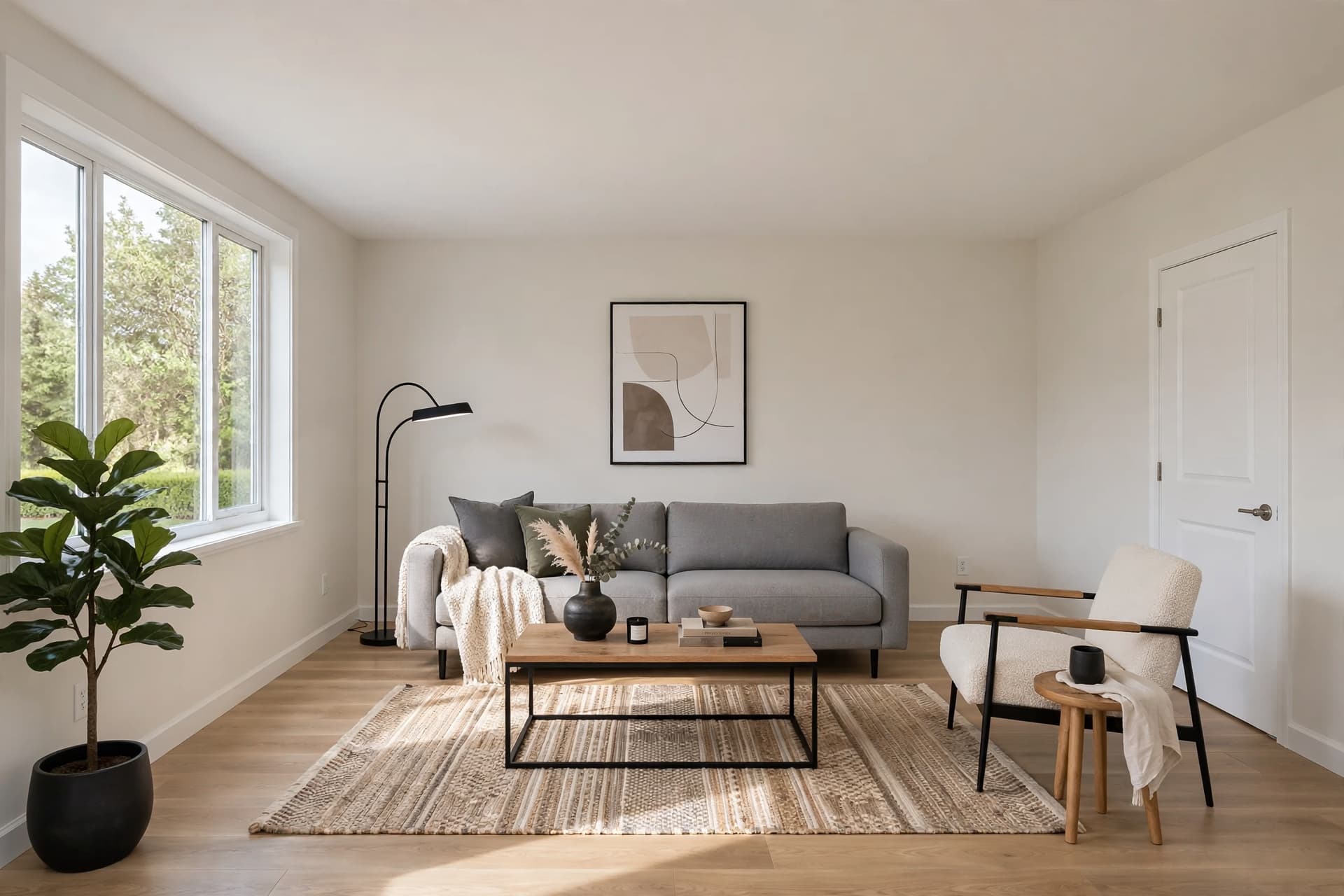
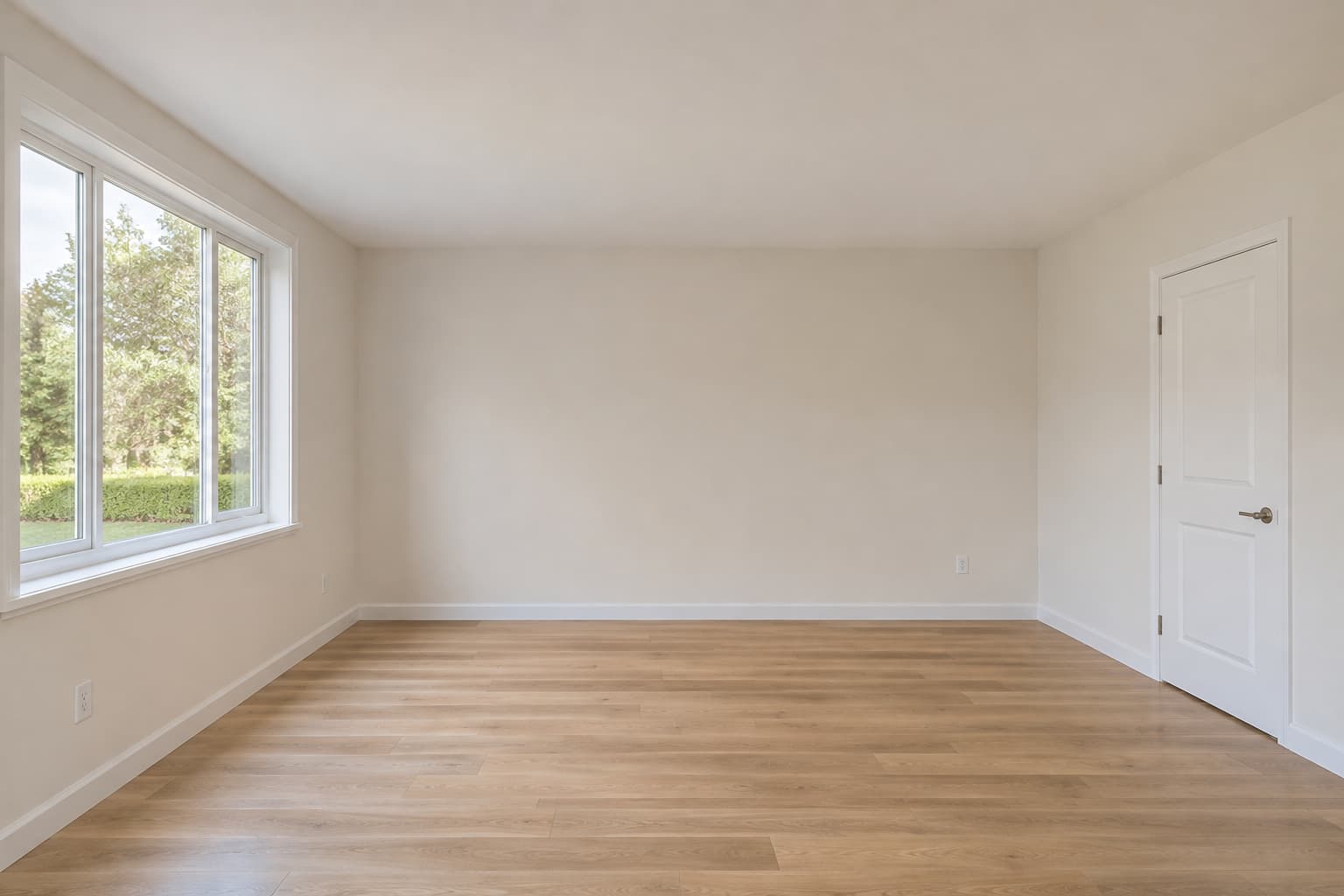
We uploaded the synthetic empty-room image shown below, chose Virtual Staging, selected Living Room and Modern style, and generated a furnished version. The result adds a sofa, chair, tables, rug and plant. It is an actual IC result; the room itself is fictional.
We compared the left window, right doorway, floor and room boundaries with the source. Those features remain recognizable in this example; that observation is not a guarantee that another generated image will preserve every architectural detail.
After saving and reopening the result, we selected the original in version history, saved that selection and reopened it to confirm the original was active. We then selected the staged version again, saved and reopened it, and downloaded the selected 1920×1280 JPEG. The exported file opened successfully and showed the reviewed furnishing treatment.
Reject a version if a doorway changes, furniture blocks a route, scale is implausible or other artifacts misrepresent the room. Keep the original, choose another saved version or review the available usage before requesting a new result. Clearly identify any shared furnishing treatment as virtual staging.
Prepare the empty-room image
Use a photograph you have permission to edit and publish. Choose a view that clearly shows the room, its floor and the positions of windows and doors. Check the source for blur, severe distortion and missing detail before uploading it.
Keep the original file available for comparison. Follow the image formats and size limits shown in the uploader.
Open the image in the editor
Open the Image Editor in your software workspace and upload the photo. Wait for the source image and its history to load before requesting an edit.
The editor checks your workspace's subscription access. If a plan or usage message appears, review the available access before continuing. Current eligible offers are on the pricing page.
Choose the room and furniture style
Open Virtual Staging and select the room type that matches the photograph. The editor supports living room, bedroom, kitchen, dining room and home office choices.
Choose one of the furniture styles offered for that room. The available style list changes with the room selection, so inspect both choices before you generate the edit.
Start with one clear room/style combination. Keep a note of the source version and the choices you used so you can explain the result or repeat the comparison later.
Compare the result with the original
Wait until the generation finishes and the new image appears. Use the version history to inspect the source and generated result. Compare the whole room and the details around the added furniture.
Inspect the image at a useful viewing size before deciding to keep it. A plausible first impression is not enough when a door, window or room boundary has changed.
- Furniture scale relative to doors, windows and the room.
- Clear routes through the room and access to visible openings.
- Wall lines, floor edges, window frames and other property details.
- Furniture edges, shadows, reflections and visible artifacts.
- Whether the arrangement suits the room you selected.
Keep the result or restore an earlier version
If the furnishing treatment is suitable, keep the intended version selected and save your changes.
If the result is unsuitable, select the original or an earlier version in the history and save that choice. Generating an edit creates a new active version; closing the editor should not be treated as a discard action.
To try another treatment from the empty room, select the empty-room source version before requesting another generation. Review any usage requirements before retrying. Keep a result only after comparing it with the original.
Download and check the file
Use the download action for the image currently shown in the editor. Open the saved file and verify that it is the version you intended to use.
Keep the original and staged export together and label the staged version clearly when preparing it for publication. Check the requirements of your intended publishing destination before using the image.