For real estate photographers
Virtually stage an empty-room photo
Explore a furnished version of an empty-room photo, then compare the generated result with the source before sharing it.
Open image editor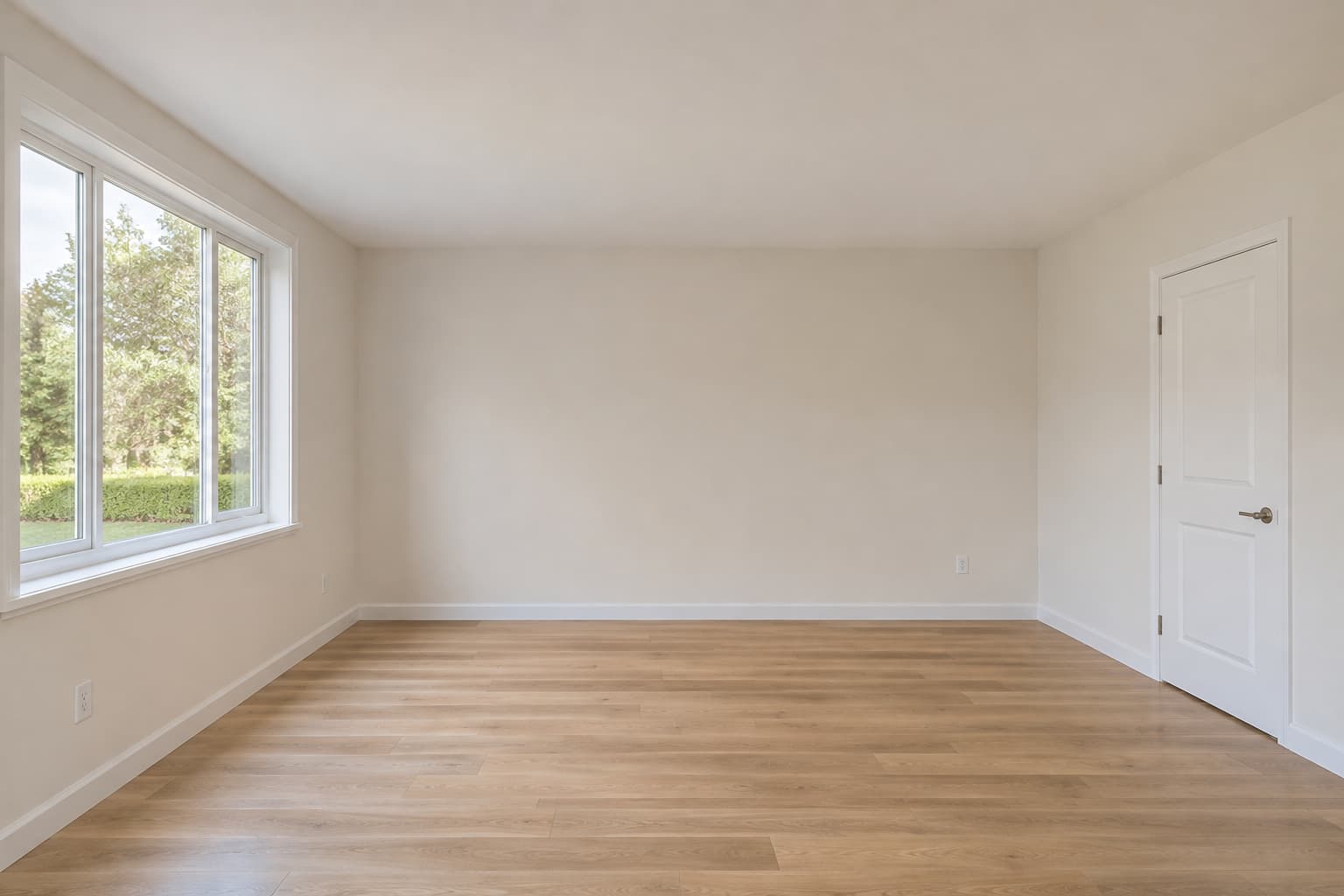
How it works
Choose a clear room photo
Start with an empty-room image you have permission to edit. Keep the original so you can compare the room's structure and details after staging.
Select the room and style
Open virtual staging in the image editor. Choose the room type, then select a furniture style from the options available for that room.
Generate and compare versions
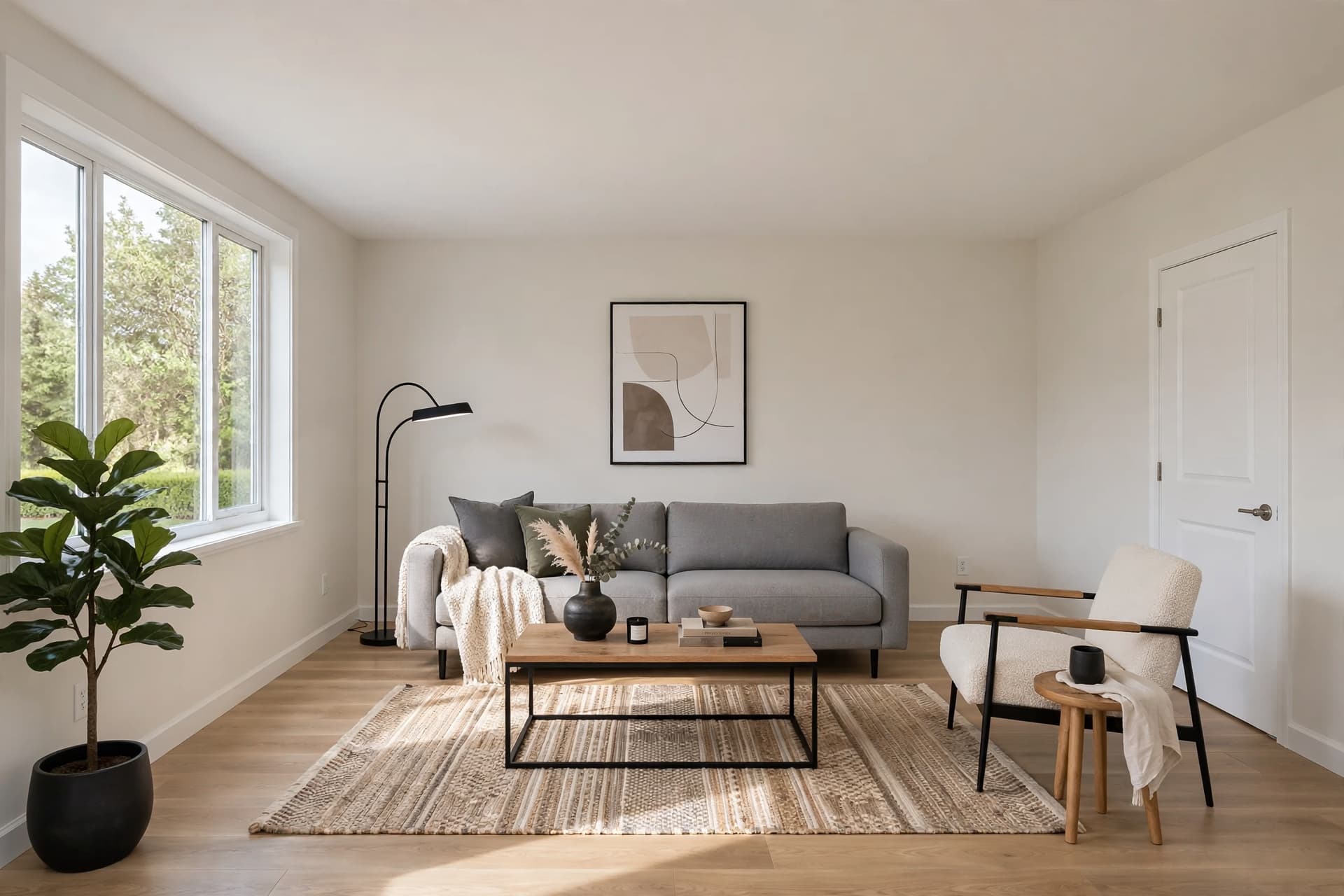
Create the staged version and compare it with the source. Inspect doors, windows, walls, furniture scale and other details that matter for the listing.
Keep the version you want to use
Generated versions are saved as you work. Use the version history to select the result you want to keep. To return to the original, select its history version and save that choice. Review the image you download and clearly identify it as virtually staged when sharing it.
What you can do
- Stage an existing empty-room photograph with generated furnishings.
- Choose a supported room type and its available furniture styles.
- Compare source and generated versions through the image editor's history.
- Select the version you want to keep and download the available result.
What to know
- Generated furnishings and architectural details need visual review.
- Use the source image to check that the result represents the room clearly.
- Available room/style choices and usage limits follow the current workspace and plan.
- Generated versions are saved during the workflow. Select and save the original history version when you want to restore it.
- Keep the source alongside the staged image and make the virtual staging clear to recipients.
Common questions
- Which room types are supported?
- The current controls include living room, bedroom, kitchen, dining room and home office. The furniture-style choices depend on the selected room.
- Can I compare the result with the original?
- Use the image editor's version history to select the source or a generated version. Inspect the important architectural details before choosing the image to use.
- Can I return to the original?
- Select the original version in the history and save that choice. Generated versions are saved as you work, so check the selected version when reopening the image.
- Does an account alone include staging access?
- Access and usage depend on the software workspace's eligible plan. Review current plans and the controls available in your workspace.
- What should I check before delivering the image?
- Compare room boundaries, doors, windows, furniture scale and visual artifacts against the original. Keep the source and clearly label the generated furnishing as virtual staging.