For real estate photographers
Create a listing video from your photos
Start with your property photos, set up a listing video and review the generated result in your Infinite Creator workspace.
Open video workspace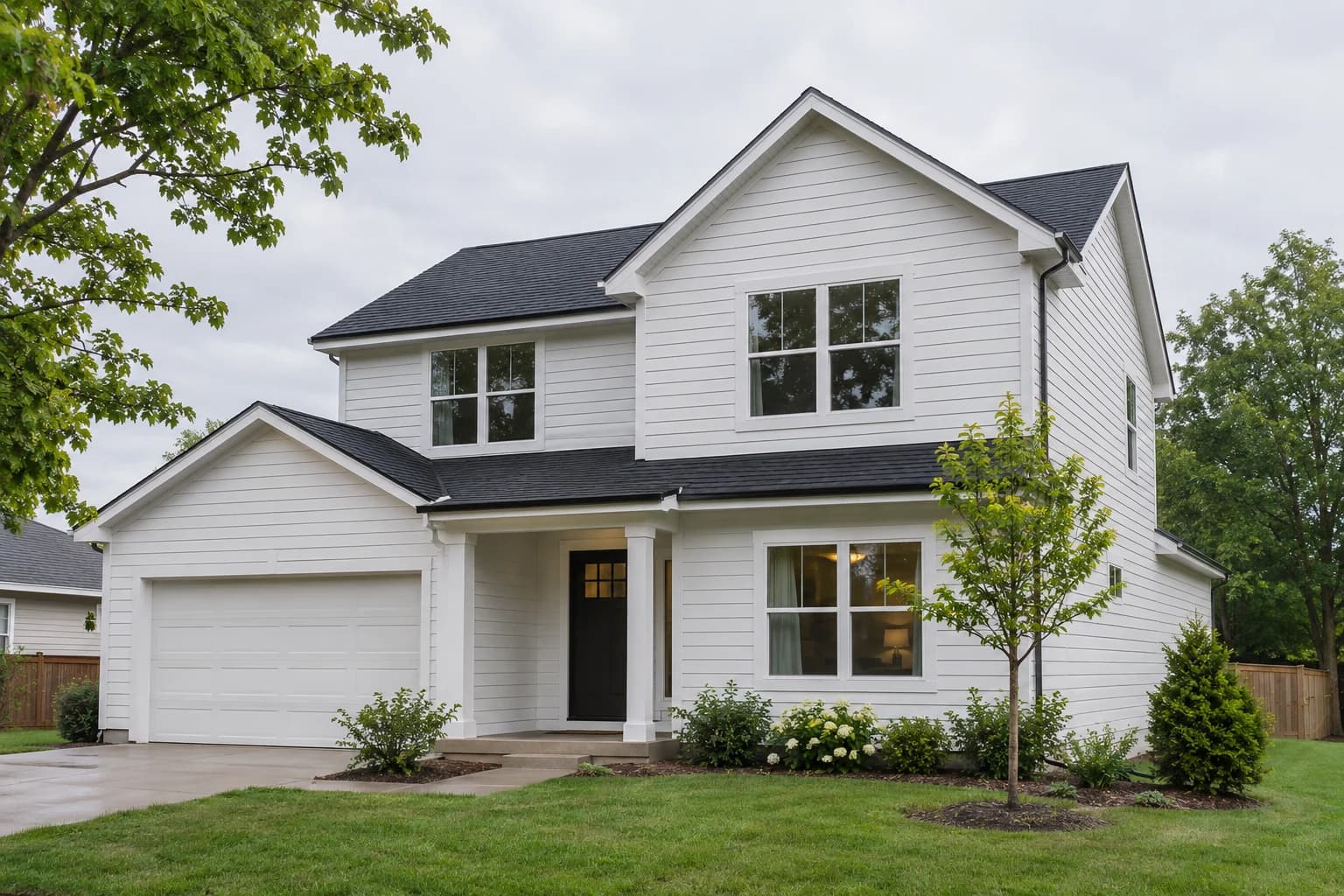
How it works
Choose a property
Open your listing workspace. Continue with an existing property or start a new project for the listing you are preparing.
Add and arrange photos
Select the property photos you have permission to use. Review the selection and order so the video follows a clear route through the property.
Review the video setup
Choose the video output and review the settings offered in the current workflow. In a new project, check all selected outputs and keep only the ones you want to create.
Inspect the result and export
When the video is ready, watch the complete result. Check room transitions, architectural details, any text and the export you plan to share. Download the completed video from the workspace after that review.
What you can do
- Start an AI listing-video workflow from supplied still photos.
- Work from the existing listing workspace and its new-project path.
- Review the available photo selection, ordering and video settings.
- Inspect the completed video and download its available export.
What to know
- Use clear property photos and keep the source set for comparison.
- Inspect generated movement and fine details before delivering the video.
- Available settings, tool access and usage limits follow the workspace's current plan.
- Review the selected project outputs when you want to create a video on its own.
- Use the worked example to judge this workflow for your photos; individual results can differ.
Common questions
- What do I need to start?
- A set of property photos you have permission to use and access to an eligible Infinite Creator software workspace.
- Can I continue with an existing property?
- Open the listing workspace and choose the property you want to work on. The page's primary link uses that workspace so you can reach the existing listing and new-project paths.
- Can I choose the photo order?
- Review the photos and their order in the creation flow before continuing. Use an order that makes the property easy to follow.
- Does registration include access to video generation?
- Tool access and usage depend on the workspace's eligible plan and available offers. Check the current plans and the access controls shown in your workspace.
- What should I check before sharing?
- Watch the whole result, compare important details with the source photos and check the final exported file.